Master professional indoor LED lighting. Learn advanced pixel mapping, 10m Bluetooth remote control, and real-time audio sync via Magic Player to create immersive visual experiences effortlessly. Read now!
Why Integrate the A608 for Smart KTV Wireless Control?
The A608 controller is Seekway’s high-performance Ethernet controller designed for both online and offline LED control. It is perfectly suited for professional indoor lighting applications. When paired seamlessly with Seekway Magic Player, the system delivers efficient programming, complex pixel mapping, real-time preview, and remote control capabilities.
Key Advantages Include:
- Support for online control and SD card offline playback, adapting to various indoor environments.
- Independent control capability for customized lighting experiences.
- Remote control, program editing, and scene scheduling for centralized operation and maintenance.
- Multiple addressing methods and one-click parameter configuration to speed up deployment and debugging.
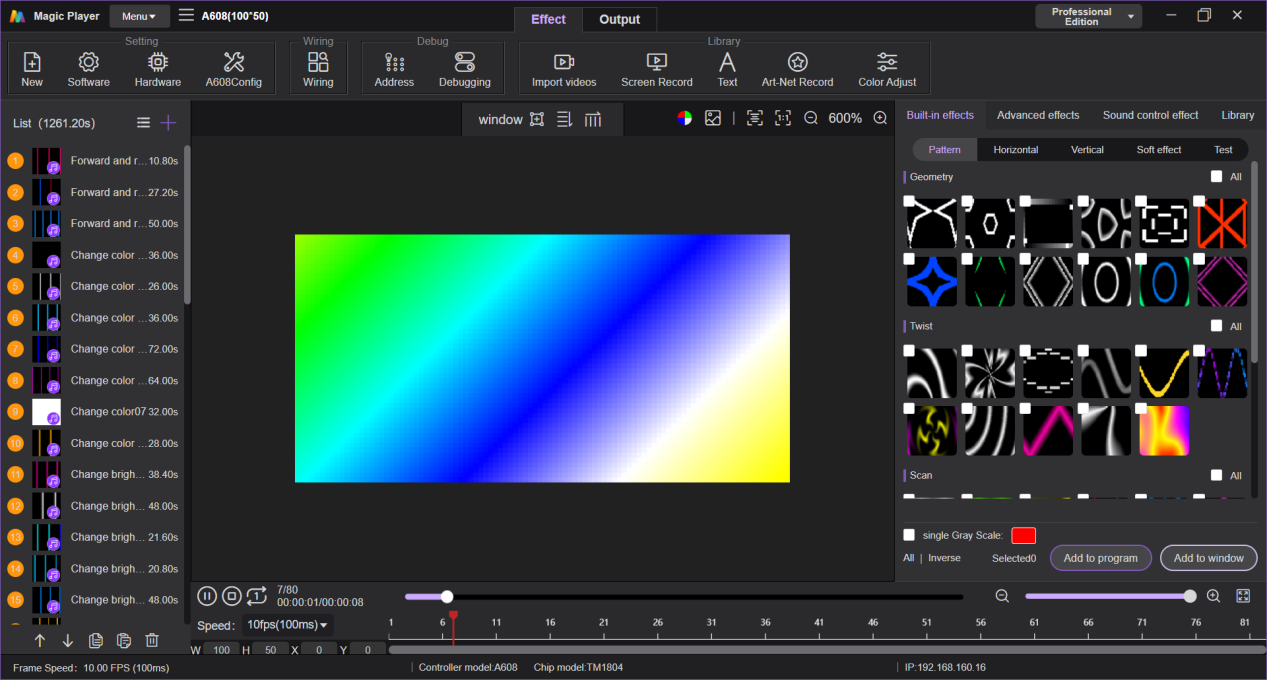
Typical Applications: Indoor Venues and Professional KTV Lighting Shows
The combination of Seekway Magic Player and A608 is especially effective for indoor lighting projects, particularly KTV venues. Common applications include:
- KTV private rooms and lobby theme lighting shows
- Entertainment clubs, bars, and nightclubs professional lighting
- Indoor exhibition halls, performance spaces, and multi-zone synchronized lighting
- Immersive indoor lighting projects requiring precise synchronization and flexible control
Thanks to SD card offline playback and convenient program management, KTV operations teams can easily update lighting content, adjust playlists, and switch themes quickly without disrupting business.
Workflow Overview: Mastering the Smart KTV Lighting Setup
This guide walks you through a complete case study of creating an indoor lighting show using Seekway Magic Player software and the A608 controller. The main steps are:
- Create a new project in Seekway Magic Player.
- Build pixel mapping and configure controller parameters.
- Select the correct network interface and connect to A608 (online mode).
- Add lighting effects and media to create programs.
- Use A608 to set up Bluetooth and use eSeeker App
- Sound Control & Real-Time Sync via A608
Step 1: Initializing Your KTV Lighting Project
Project Setup and Ambient Parameters
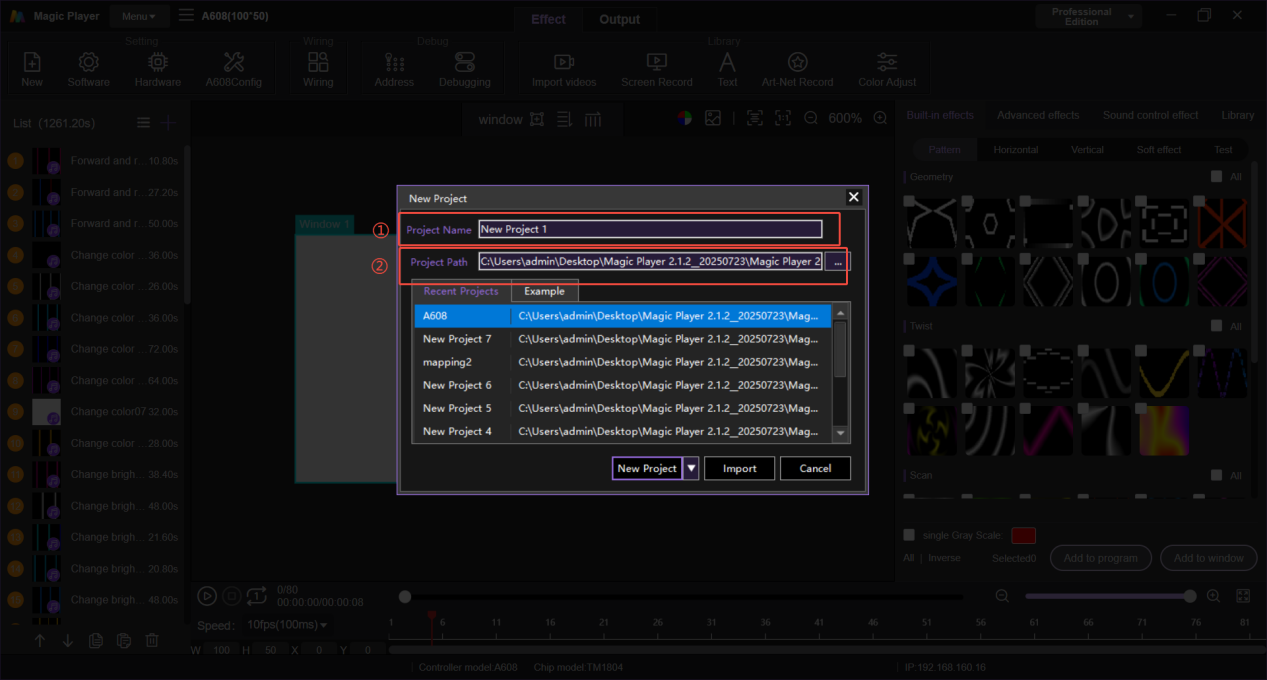
Launch Seekway Magic Player and click Project > New.
In the new project window, configure:
- Project name: to distinguish different KTV venues or rooms
- Project dimensions: matching the actual LED layout or display area
- Project path: folder for storing project files and media
Once confirmed, the software automatically creates the project, and you can proceed to the mapping stage.
Step 2: Configuring Pixel Mapping for Custom KTV Layouts
Utilizing Map Tools for Pixel Precision
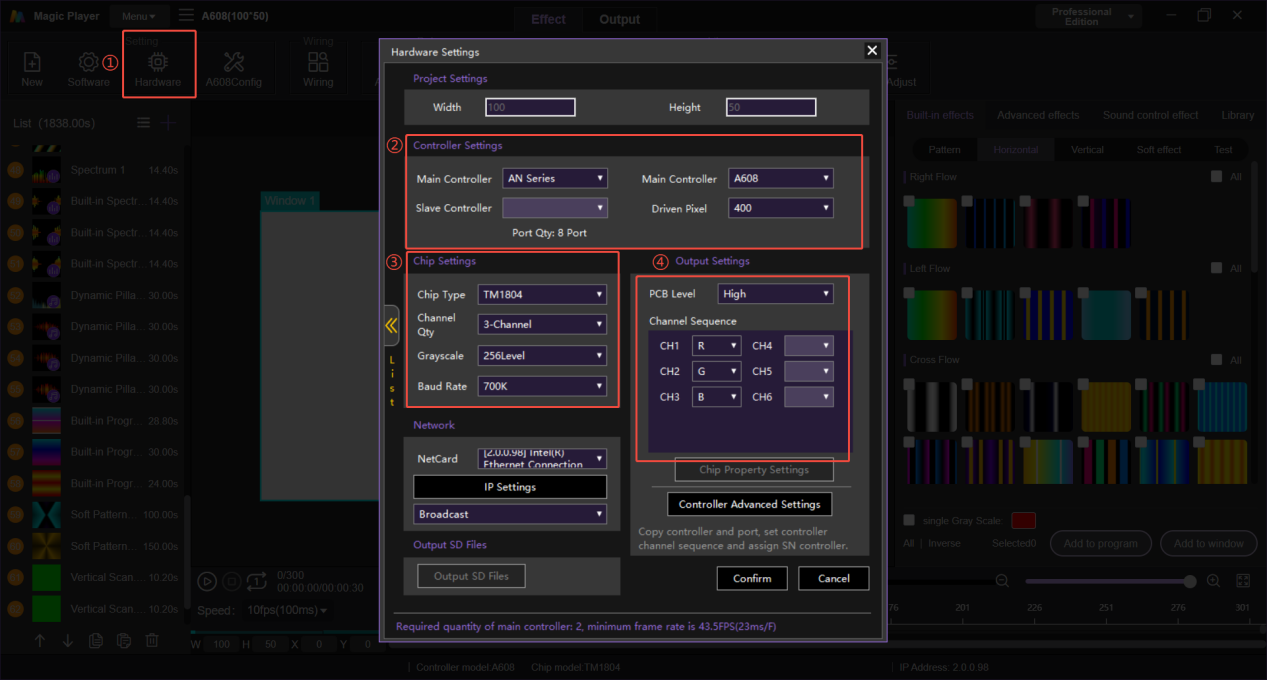
After creating the project, click “New Map Tools for Project” to open the mapping tool. Here you define the correspondence between LEDs and the project canvas.
Main settings include:
- Mapping Size: Matches the actual LED array or KTV indoor lighting layout.
- Controller Settings: Assign the A608 controller and its output ports.
- Chip Settings: Configure chip type and channel order (e.g., RGB order).
Seekway Magic Player supports importing DXF design files and manual drawing, making it especially suitable for complex facades, irregular decorations, and non-standard LED layouts inside KTV rooms.
Step 3: Establishing Online Connection for Live Tuning
PC-to-Controller Network Configuration
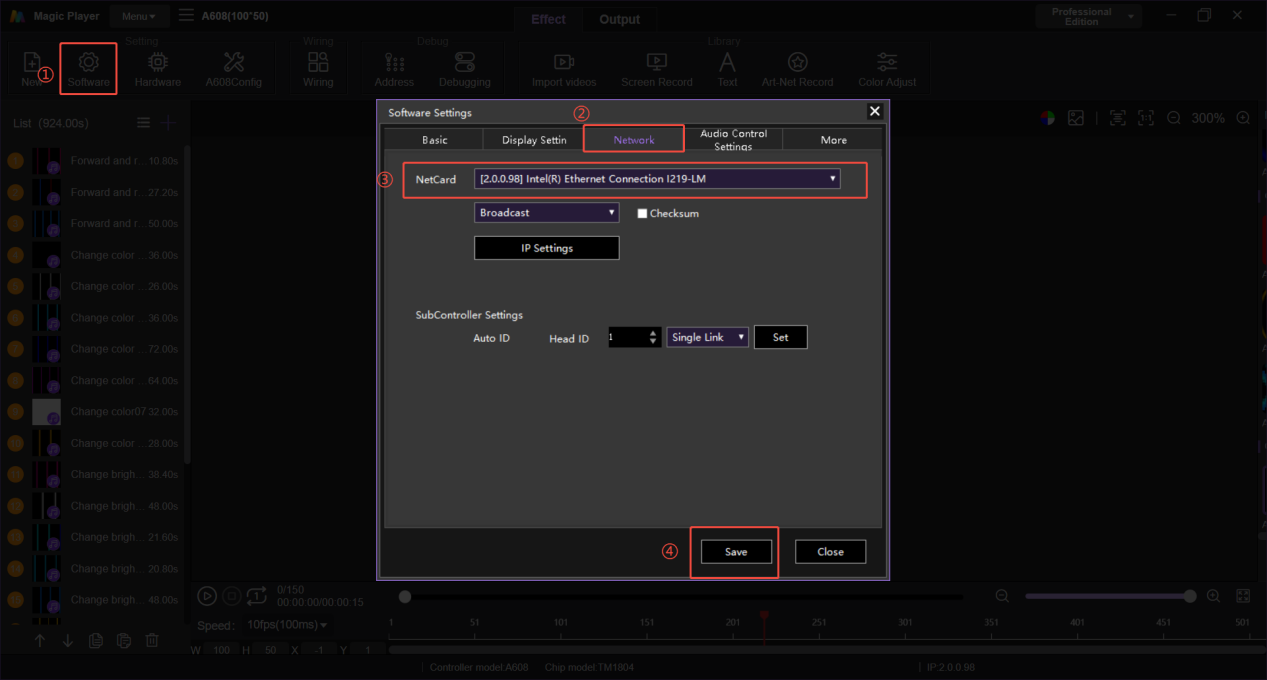
Before using online control, ensure the network connection between your PC and the A608 Art-Net controlle is correct. Basic steps:
- Connect the A608 Ethernet port to your PC’s Ethernet port using a network cable.
- Confirm that the A608 is properly connected to related devices (such as LED receiving cards or interface modules).
- Open the network connections panel on your PC, right-click “Ethernet” and select “Properties”.
- In IPv4 settings, choose “Use the following IP address”.
- Set the IP address to the same subnet as the A608 (refer to the label or manual) and fill in the corresponding parameters.
- Save the settings, then select this network card in Seekway Magic Playerand switch the project to “Output Mode”.
Once completed, the software can communicate with the A608 in real time, which is perfect for on-site testing and debugging in KTV environments.
Step 4: Designing Immersive Visuals and Effects
Applying Built-In Patterns and Video Footage
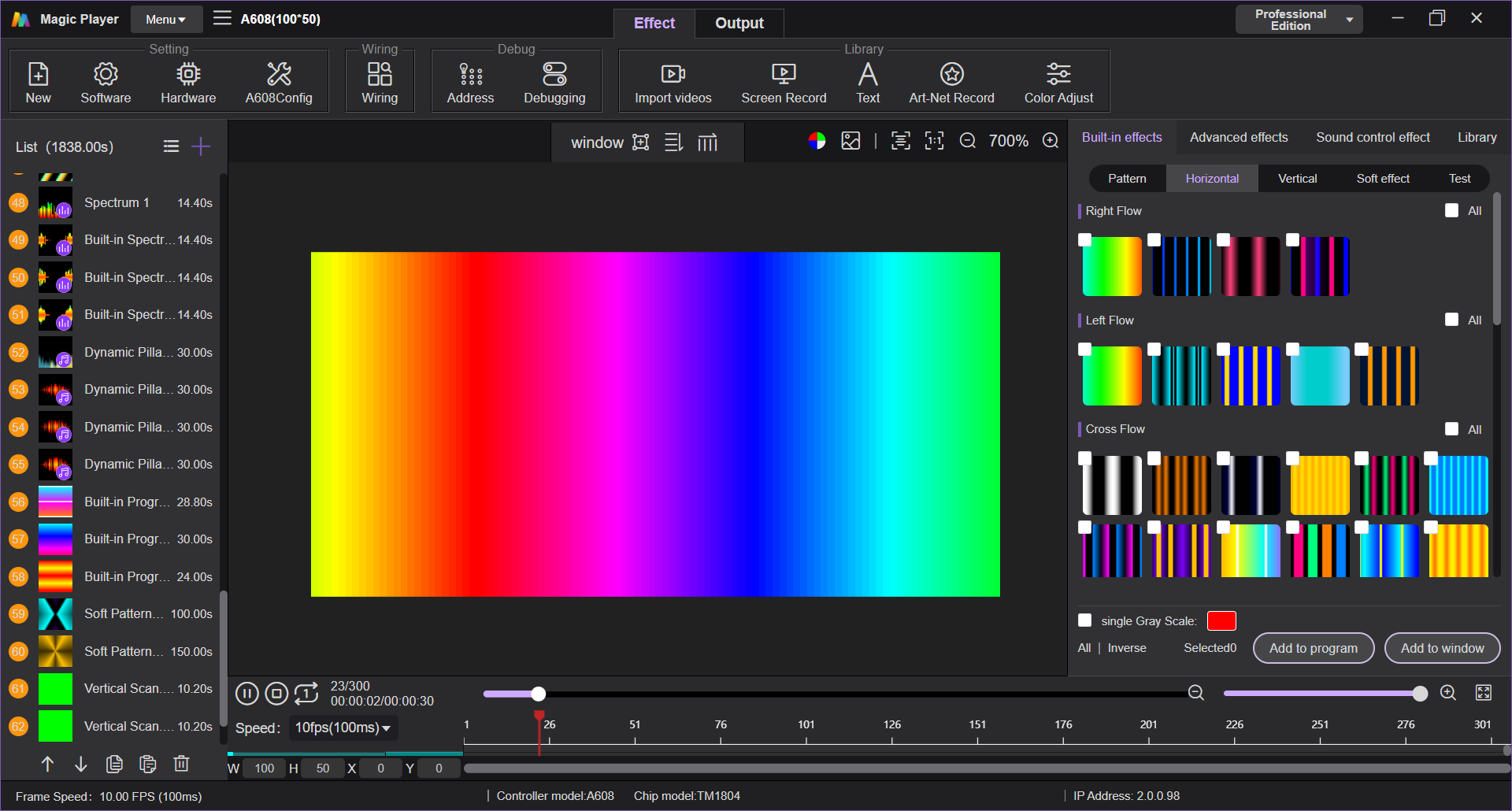
After completing mapping and network setup, you can start adding content. Seekway Magic Player provides various material types to quickly build high-atmosphere visual scenes required for KTVs. In the “Material” section, you can choose:
- Simple animations: Basic dynamic graphics suitable for quickly creating different room atmospheres.
- Test animations: Patterns used to verify mapping accuracy and LED performance.
- Built-in animations: A library of preset artistic effects.
- Video materials: Import video files and convert them into LED visual content.
After selecting and confirming the desired materials, add them as “Programs”. These programs will appear in the list on the left side of the interface for easy management and scheduling of different themed lighting shows.
Step 5: Deploying 10m Wireless Control via the eSeeker Bluetooth App
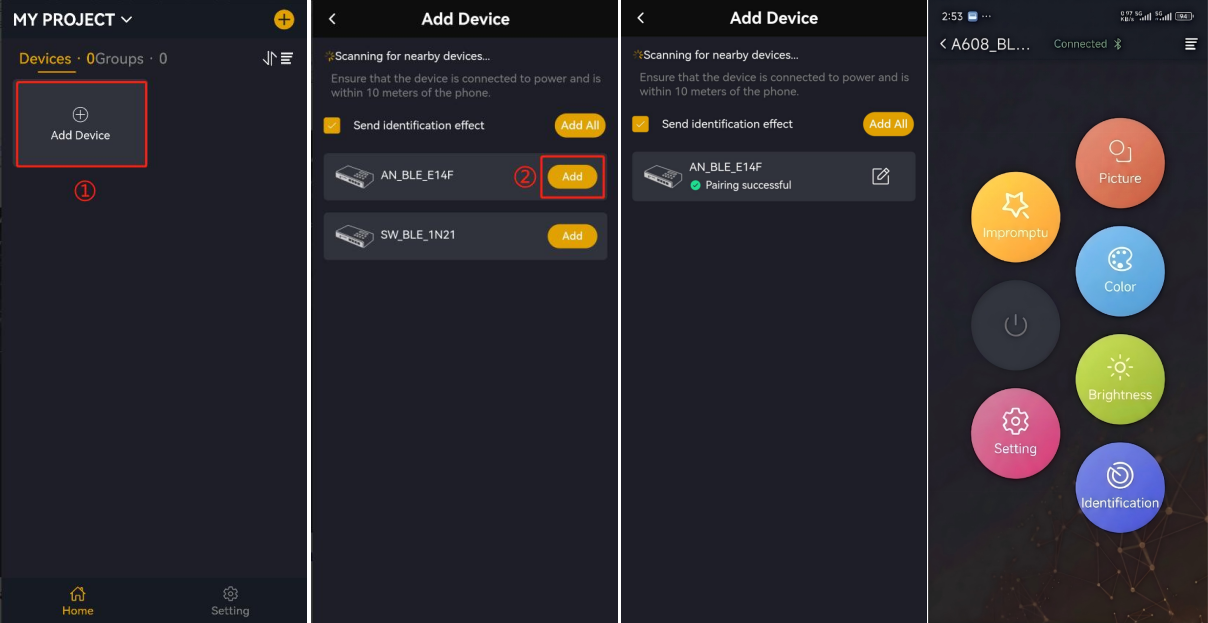
Once the project is imported into the SD card and the program is loaded, you can instantly preview and fine-tune the effects on the actual LED installation via wireless Bluetooth control.
Typical Bluetooth Adjustment Flow
- Select a program or special effect from the SD card within the mobile eSeeker app, then tap play.
- The LED panel immediately displays the selected effect in real time, eliminating the need for complex wired connections.
- The app interface displays the current playback status, allowing you to monitor and adjust brightness and speed on the fly.
- Easily switch between different programs within a 10-meter range to compare visuals, optimize effects, and fine-tune the program sequence.
Bluetooth wireless control is particularly suited for daily KTV operations and on-site commissioning. Staff or technicians can adjust speed, brightness, color, and sequences in real time until the venue's ambiance perfectly matches the guests' needs.
Step 6: Activating Music-Synced Rhythm & Real-Time Audio Sync
Once the project enters Audio Control Mode and the program is loaded, you can enable sound control to let the actual LED installation sync with live music or vocals in real time.
Typical Sound Control Flow:
- Connect a 3.5mm audio input cable to the A608 controller to capture live music or external audio sources, or directly plug in a microphone to capture live vocals and ambient sound.
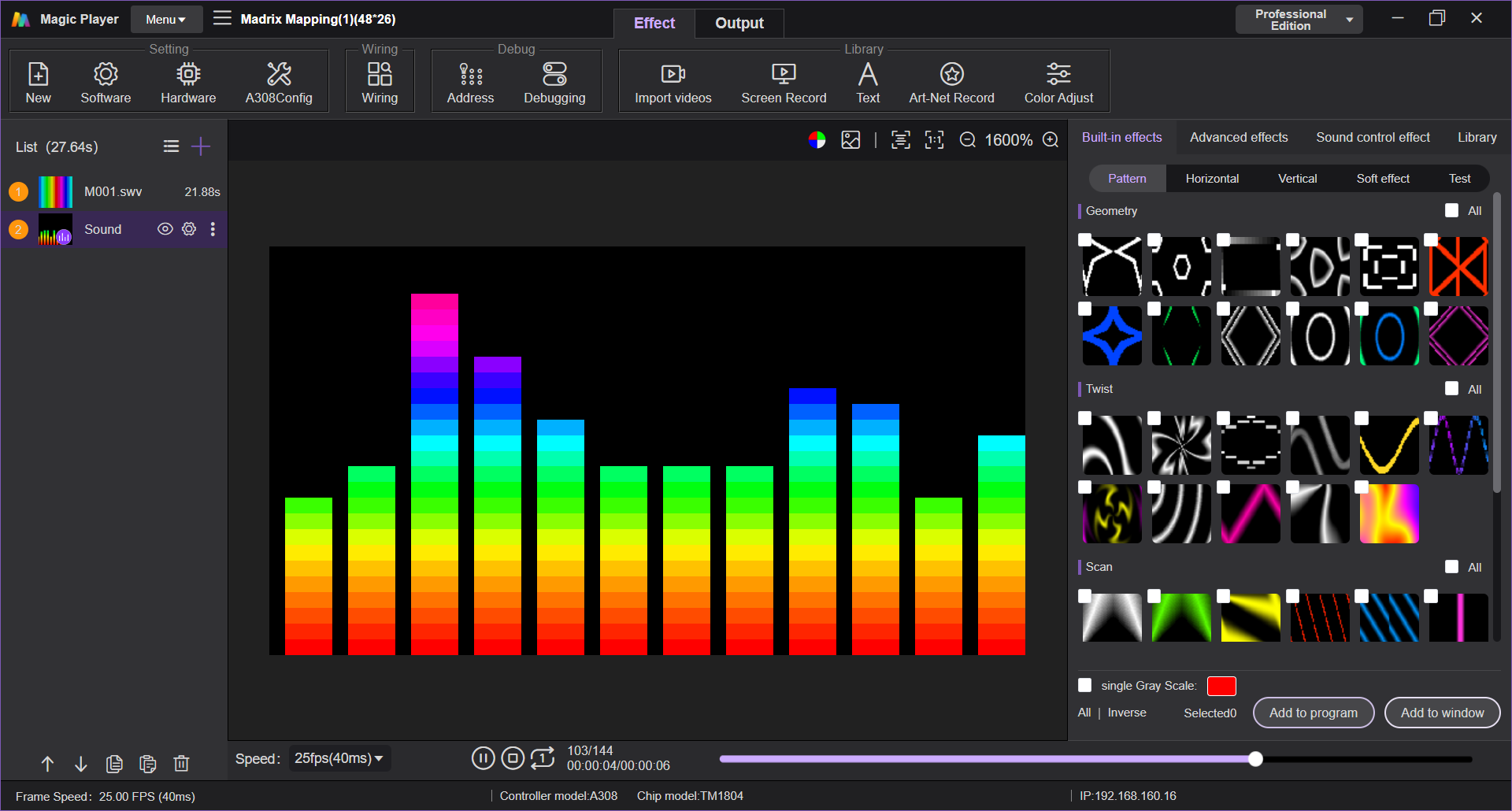
- Create an Audio Control Effect in Seekway Magic Player and click play.
- The LED panel immediately drives lighting changes, color jumps, or effect switches in real time based on the music beat or the sound levels picked up by the microphone.
- The software interface displays the current audio control status and supports smooth switching between Automatic and Sound modes, delivering an immersive "sync-with-the-music" experience.
The sound control feature is particularly suited for official KTV operations and building high-energy atmospheres. Whether playing intense dance tracks or when guests take the mic to sing, the lighting sequences automatically and precisely match the live rhythm until the venue's ambiance perfectly hits the guests' sweet spot.
Next Steps: Tailoring Your Smart KTV Lighting Solution
If you are interested in building a complete indoor intelligent lighting system based on the A608 and Seekway Magic Player, our team can help evaluate your KTV project and provide customized solutions. You can:
- Visit the Seekway Innovations official website to learn more about products and solutions.
- Contact our sales and technical team via email to discuss your project requirements.
- Submit a project summary through the “Contact Us” form to request consultation or a product demonstration.
Feel free to contact us anytime if you have any specific questions or need further technical support!