Discover Seekway Magic Player — a powerful professional LED programming software. This step-by-step tutorial covers pixel mapping, S-shape wiring, DMX testing, desktop screen recording, dynamic text, advanced effects, and multi-viewport programming for commercial projects.
Introduction: Professional LED Programming Made Accessible
Many lighting professionals need powerful yet easy-to-use software for pixel mapping and dynamic effects without ongoing license fees. Seekway Magic Player is designed for exactly that — delivering professional performance with straightforward real-world workflows.
This practical step-by-step guide shares the exact methods used in actual commercial projects. It will help lighting designers, installers, and project managers efficiently configure high-density LED systems and create impressive synchronized shows for bars, nightclubs, retail spaces, events, and architectural lighting.
Project Initialization and Quick Pixel Routing
Follow these steps to set up a high-density LED matrix in Seekway Magic Player:
- Step 1: Click New Project in the top toolbar. Set the controller quantity (e.g., 10 units). Specific hardware models can be selected later.
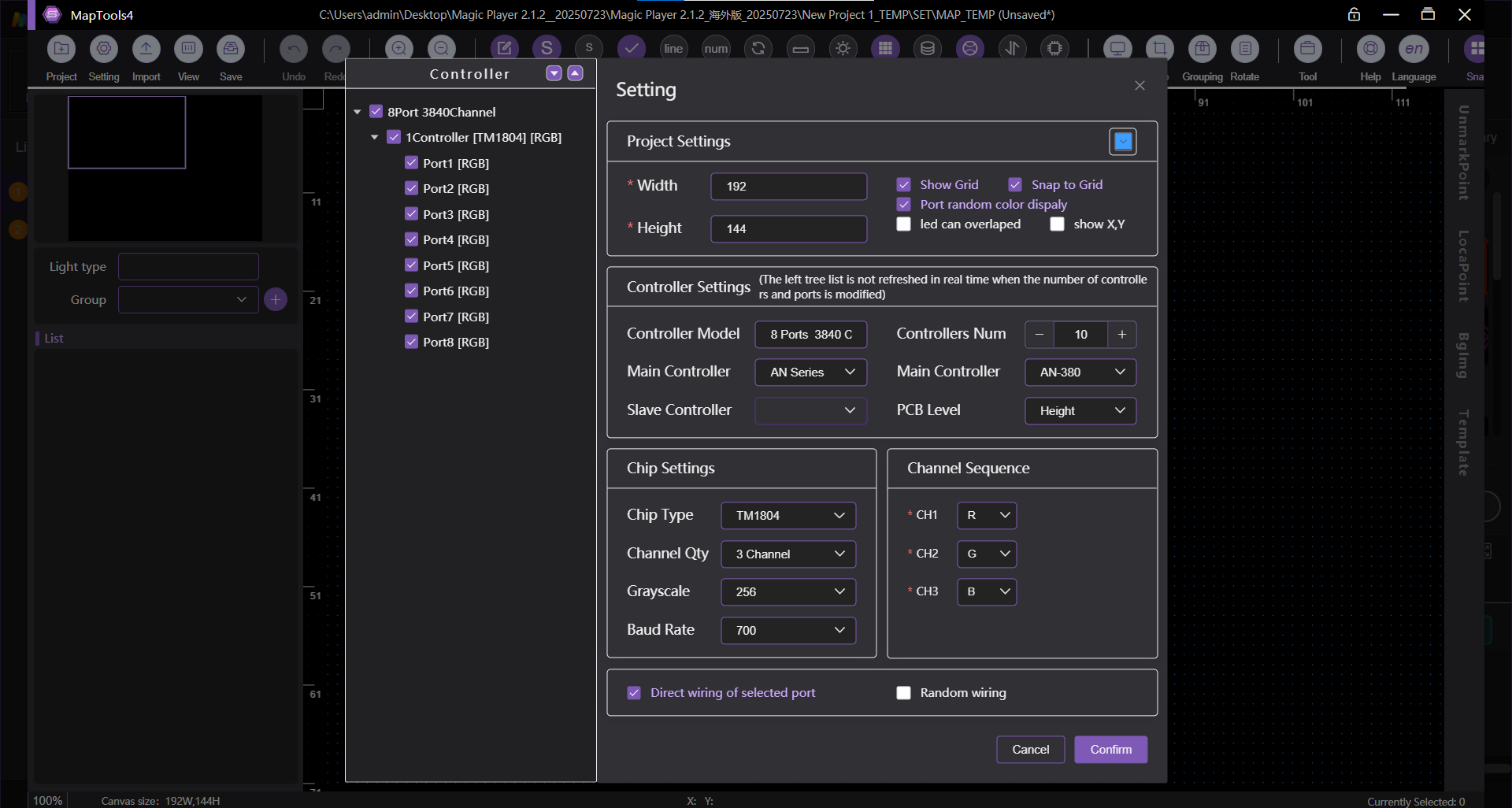
- Step 2: Select Port 1 on the workspace interface to activate the Quick Wiring tool.
- Step 3: Enter matrix parameters — for example, horizontal width of 300 pixels and 3 rows per port (900 pixels per port).
- Step 4: Apply the same configuration to all controllers.
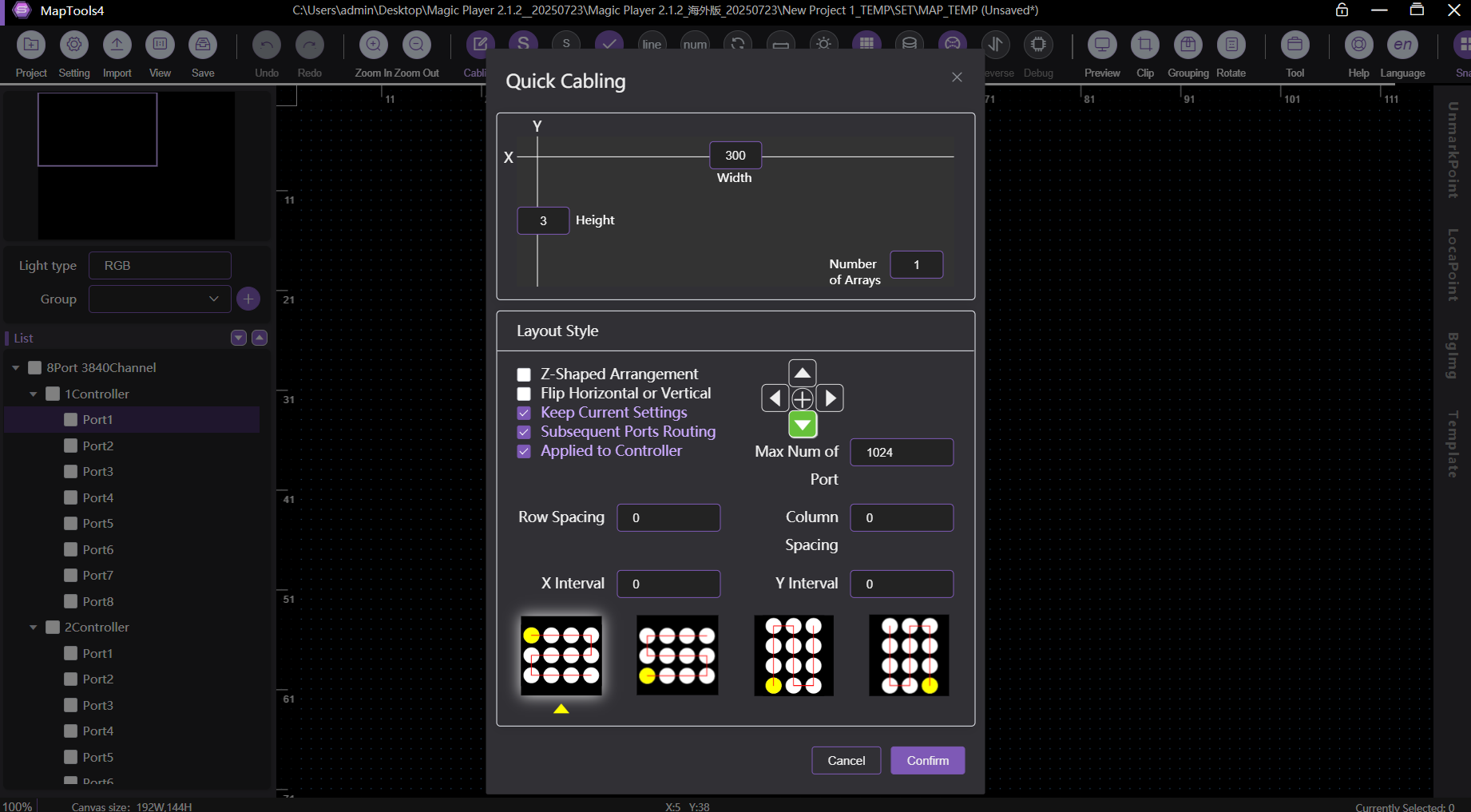
- Step 5: Set ports vertically (top to bottom) and use an S-shape (Serpentine) wiring pattern from left to right. Click the canvas to confirm. Use the mouse wheel to zoom and drag to review the full layout.
This qucik method significantly speeds up mapping.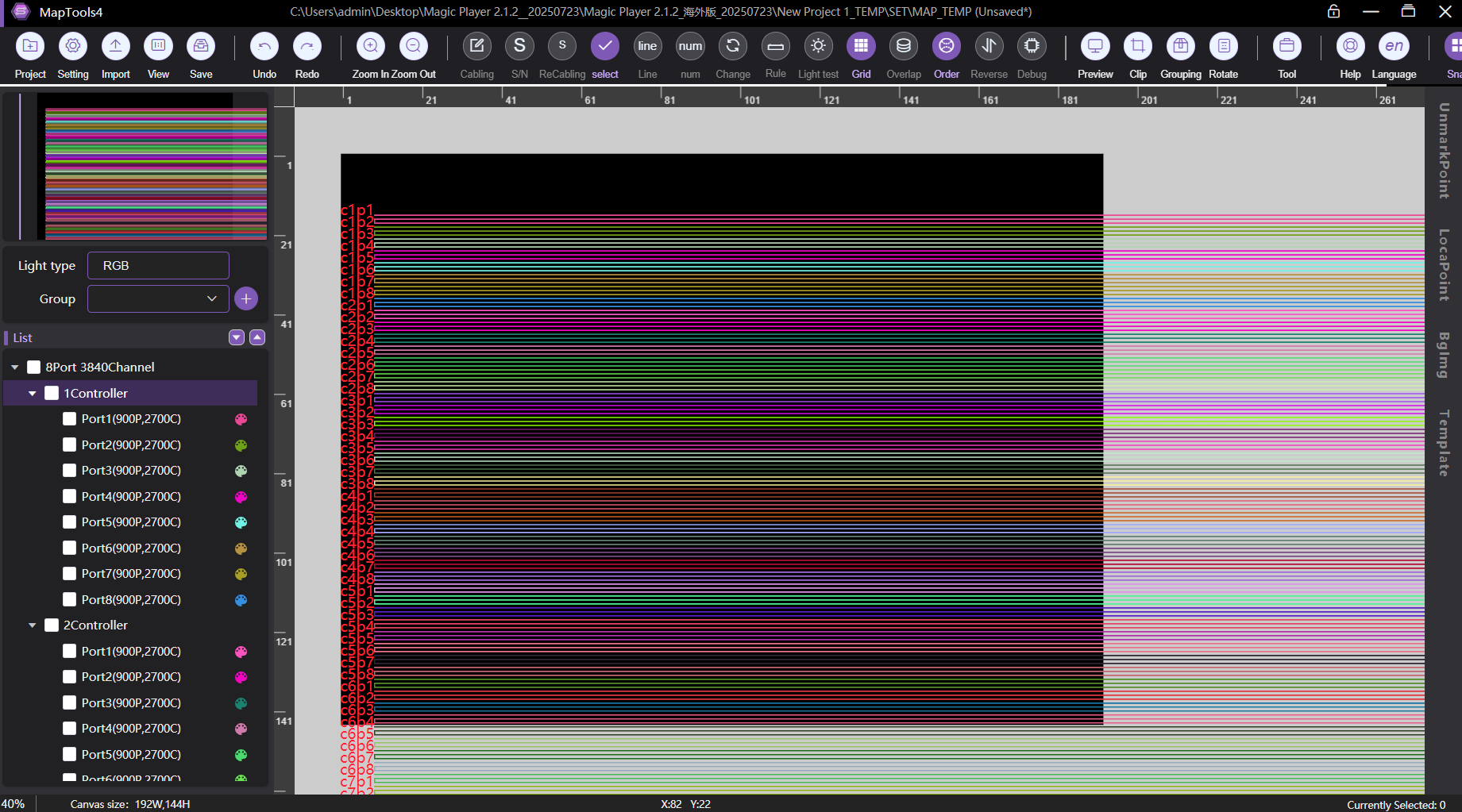
Top Toolbar Functions for Efficient Project Management
The top menu provides essential tools for deployment and remote control:
- Software & Network Settings: Select your network card (NIC) for live debugging and direct communication with controllers.
- Audio Control Settings: Choose music input source (line-in or microphone) for sound-reactive shows.
- Hardware Information: Edit IC chip type, pixel count, grayscale, and RGB/RGBW channel order.
- Online Controller Update (Remote Flashing): Search for controllers on the network and send compiled effects to multiple units at once — no need to manually handle SD cards in difficult locations.
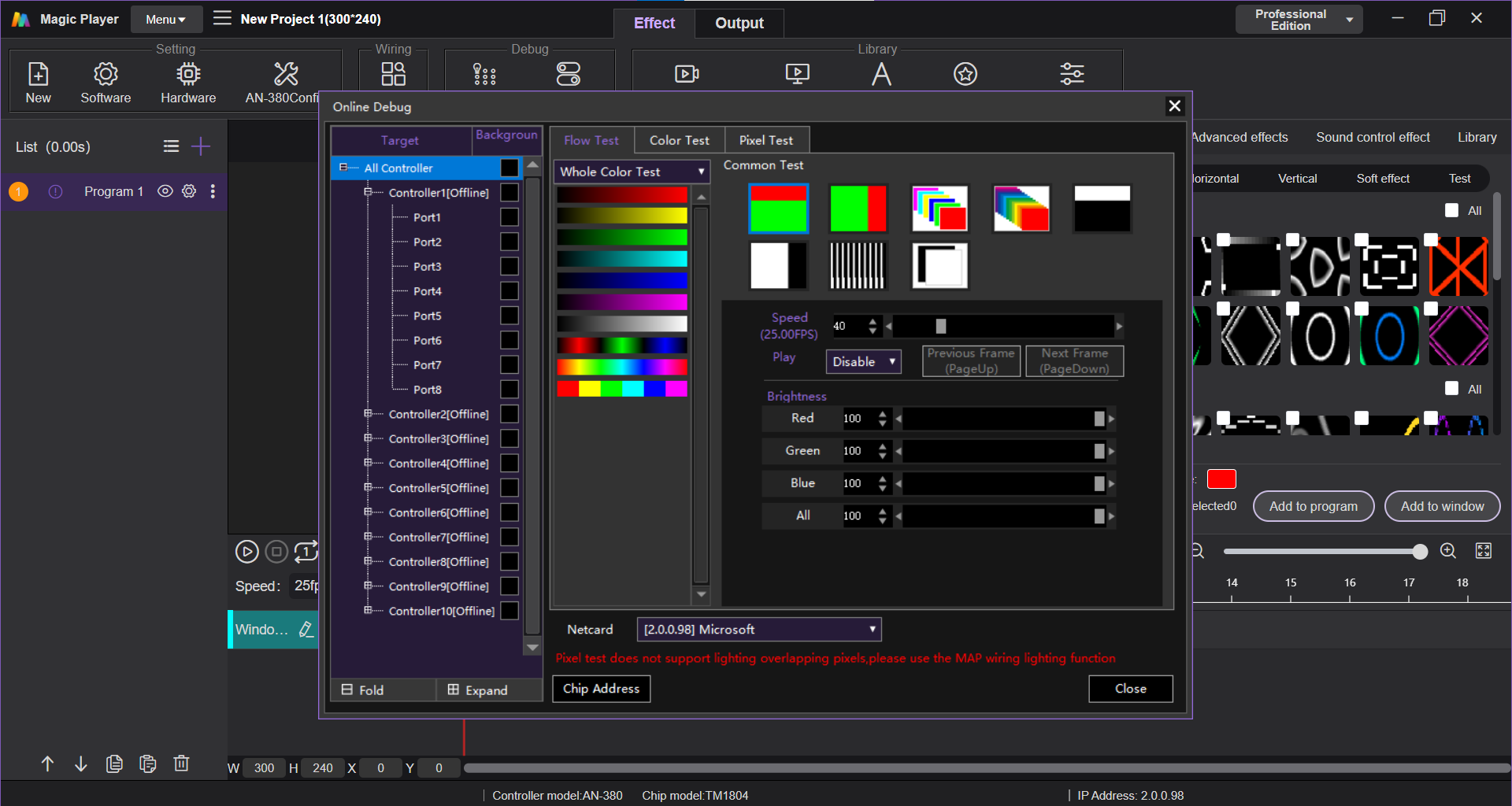
Field Diagnostics and Hardware Testing
Verify your installation before loading final content:
- Engineering Debugging (Flow Test): Run chasing and flowing patterns to confirm direction and mapping accuracy.
- Fixed Color Test (Channel Verification): Output pure Red, Green, Blue, or White.
- Calibrate RGB channel order if colors appear incorrect.
- Detect dead pixels or color inconsistencies across the entire project.
Media Asset Processing and Desktop Screen Recording
- Video Import: Add Program → Add Viewport → Select your video file. The software automatically converts frames into LED data.
- Desktop Screen Recording: Position the black capture frame over any playing content (even from other software), resize it, and click Record. Stop when finished — the sequence becomes an editable asset instantly.
Custom Dynamic Text Design
Create professional text animations and branding overlays:
- Enter text, choose fonts, and adjust spacing, line height, stretching, or rotation.
- Customize colors and add borders for better visibility.
- Control motion with fixed step length, static positioning (“None” for entry/exit), bounce, or mirror effects.
Ideal for event signage, promotions, and branding.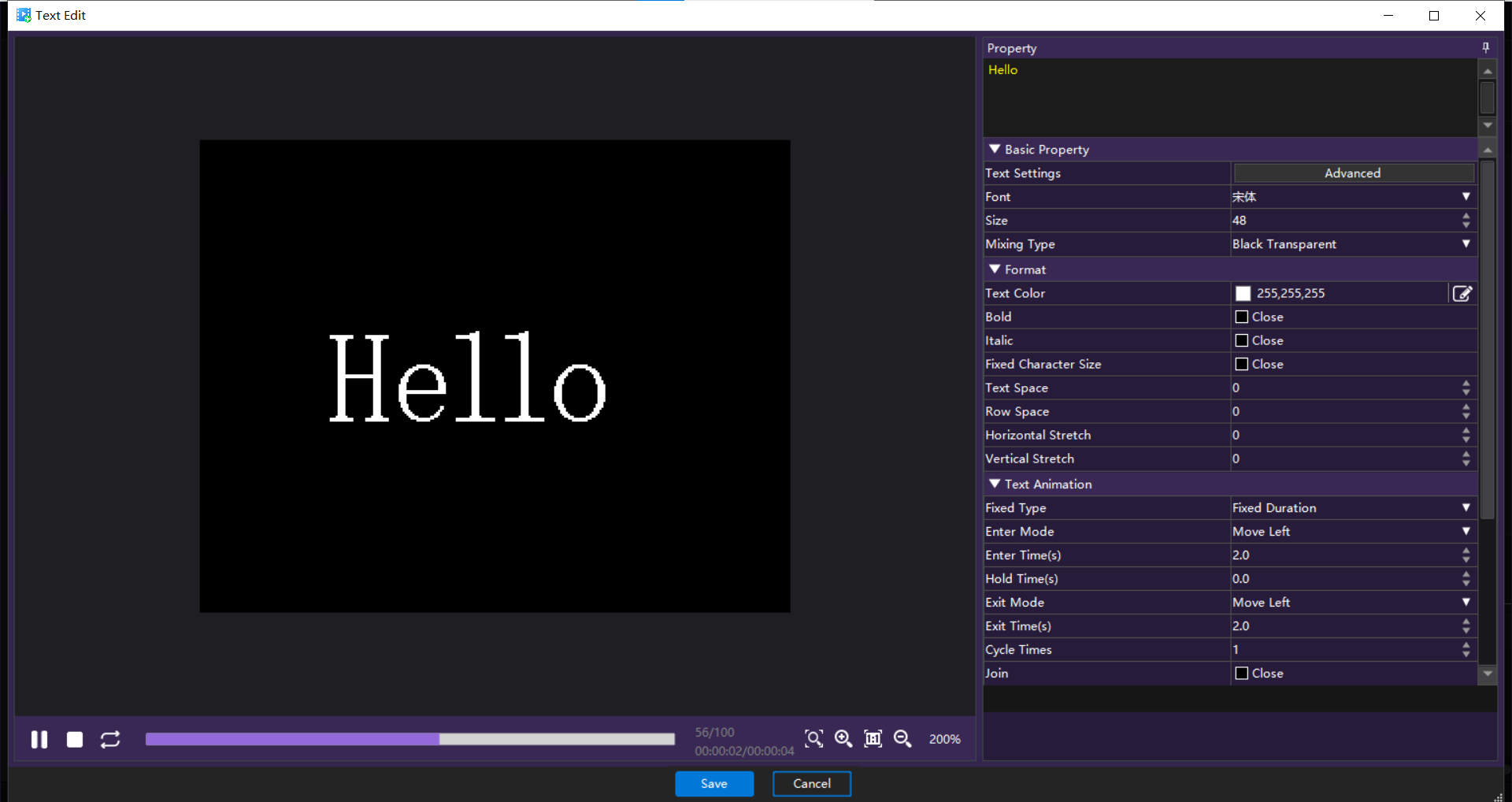
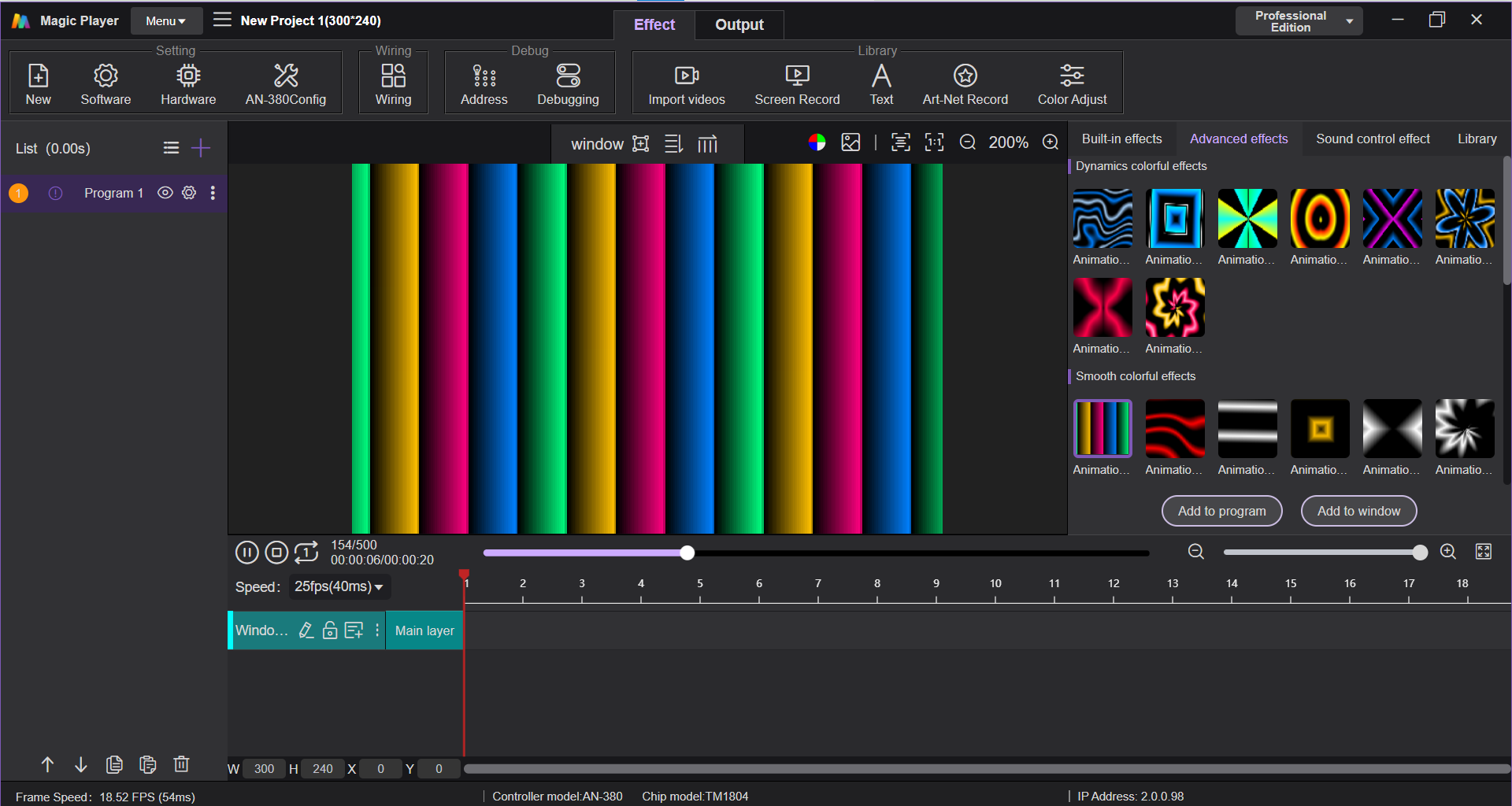
Parametric Advanced Effects Configuration
- Built-in Effects: Quick library selections with basic parameters.
- Advanced Effects: Real-time preview support. Double-click a viewport to open detailed controls.
- Custom color ribbons (add/remove color stops).
- Adjust speed, geometry (wave, scroll, wind modes), scaling, rotation, vibration, and more.
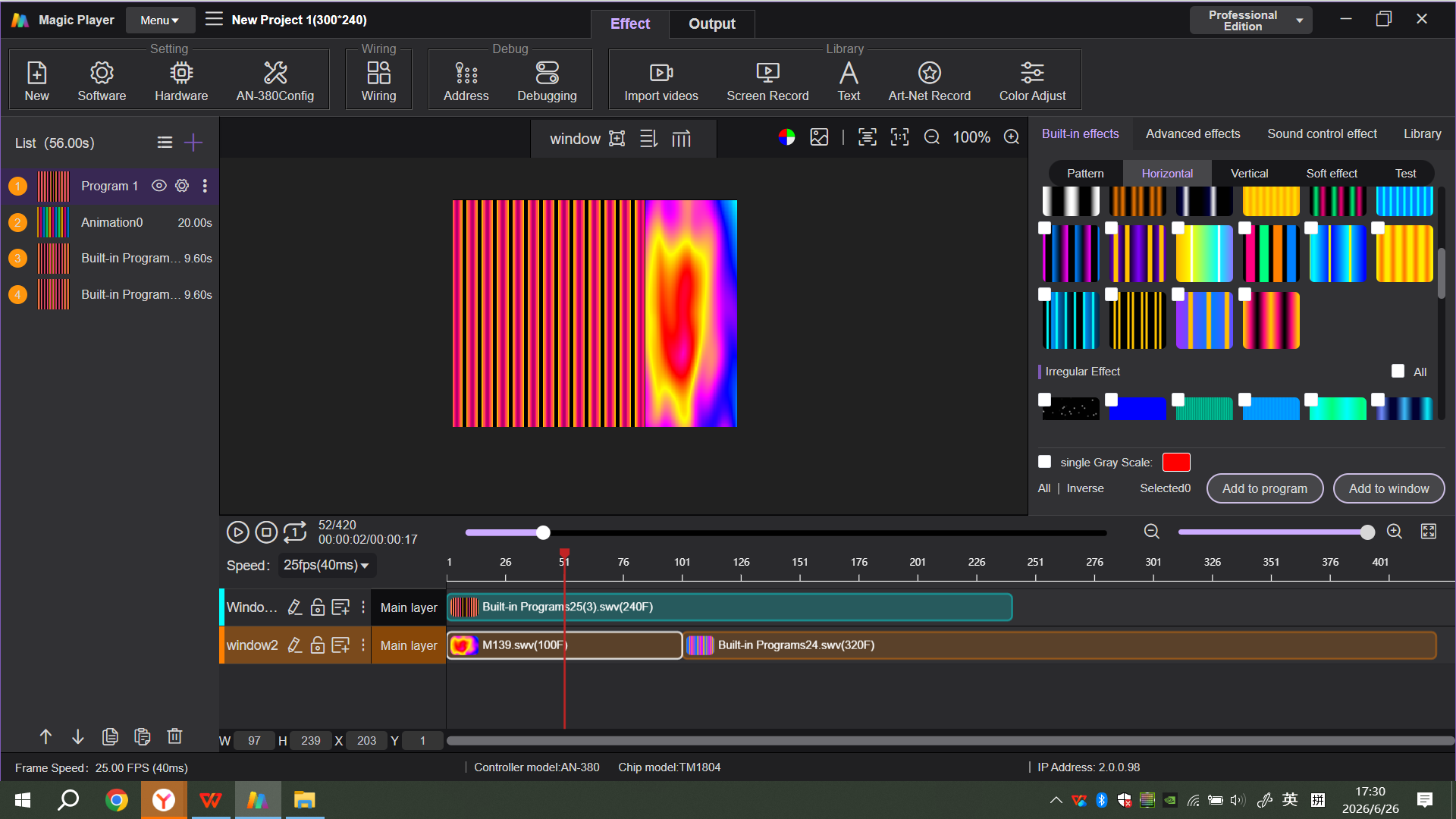
Multi-Viewport Split-Screen Programming
Build complex, multi-zone displays:
- Add multiple viewports in the timeline.
- Resize, position, and lock them to prevent overlap.
- Assign independent content to each viewport (video, advanced effects, text).
- Restart global playback for perfectly synchronized multi-layer output.
Get Started with Magic Player Today
Contact us to learn more about Seekway Magic Player and compatible controllers. Seekway Innoavtions can provide demos, project consultations, wiring diagrams, and personalized support.