
2025-11-26

In LED entertainment lighting and landscape illumination projects, wiring is the critical first step that turns creative concepts into real pixel points. When you are dealing with hundreds, thousands, or even hundreds of thousands of pixels, the speed and precision with which you map physical fixture positions to the control system’s data coordinates directly dictate the project timeline and the final visual impact. The Map Tools 4 built into Magic Player professional software was created precisely to tackle this core challenge. Seamlessly blending detailed manual wiring, one-click quick wiring, DXF drawing import, intelligent group wiring, and real-time lighting debug, this LED wiring tool is nothing short of a “Swiss Army Knife” for lighting engineers.
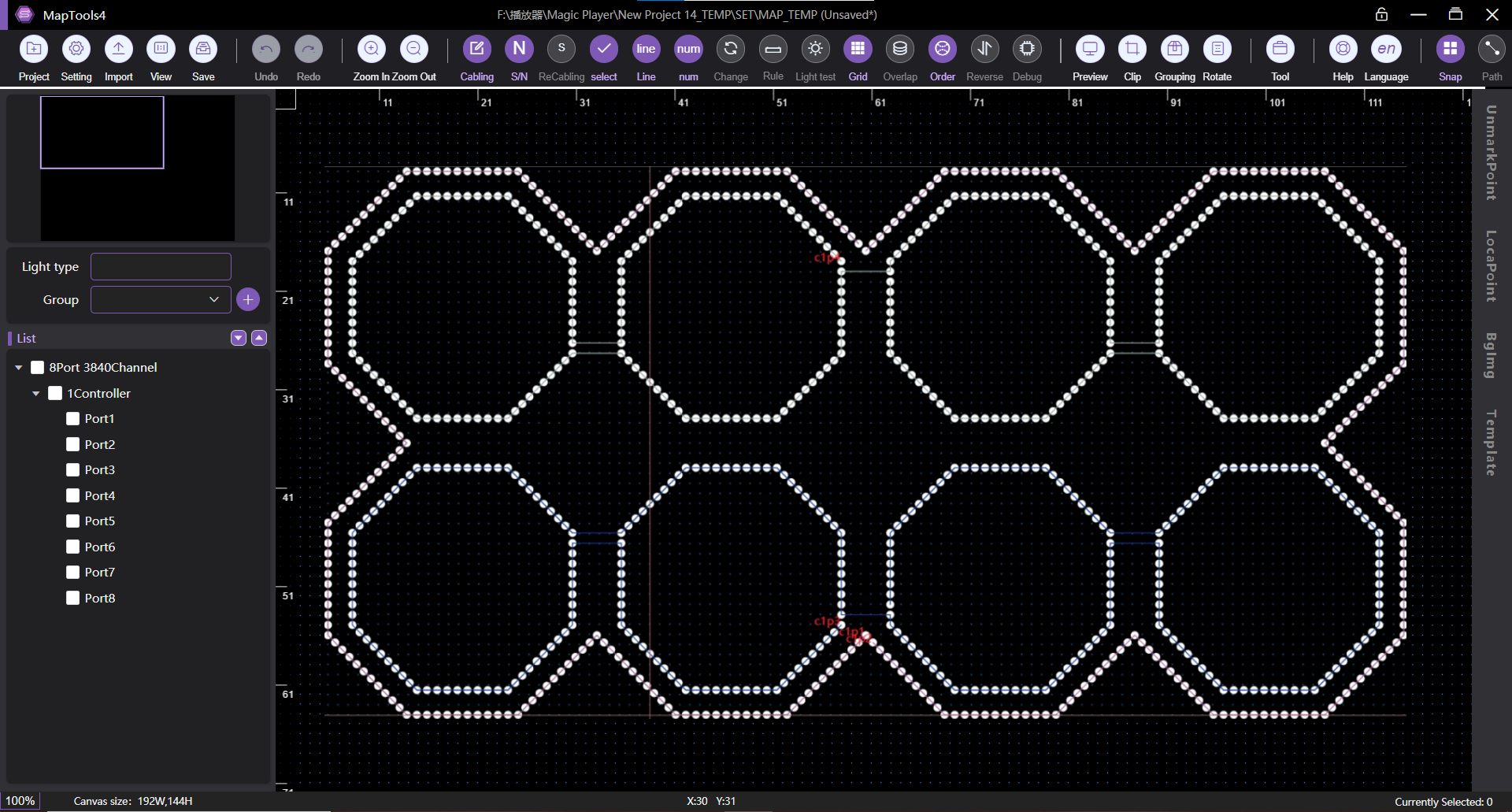
Once you launch Map Tools 4, what greets you is a logically arranged workspace with clearly divided functional zones. The interface comprises a menu bar, a main wiring area, a controller/port list, a template library, an overall preview window, and a status bar. The menu bar alone gives you access to over 32 functions—from saving projects, undoing/redoing operations, and toggling wiring paths, to lighting up test points and measuring dimensions. The controller list presents every controller and its ports in a tree structure, showing exactly which pixels each port carries, making it effortless to manage massive hardware resources. At the heart of the interface, the wiring area supports grid snapping, infinite zoom, and free dragging, allowing you to finesse even the most complex shapes with ease.

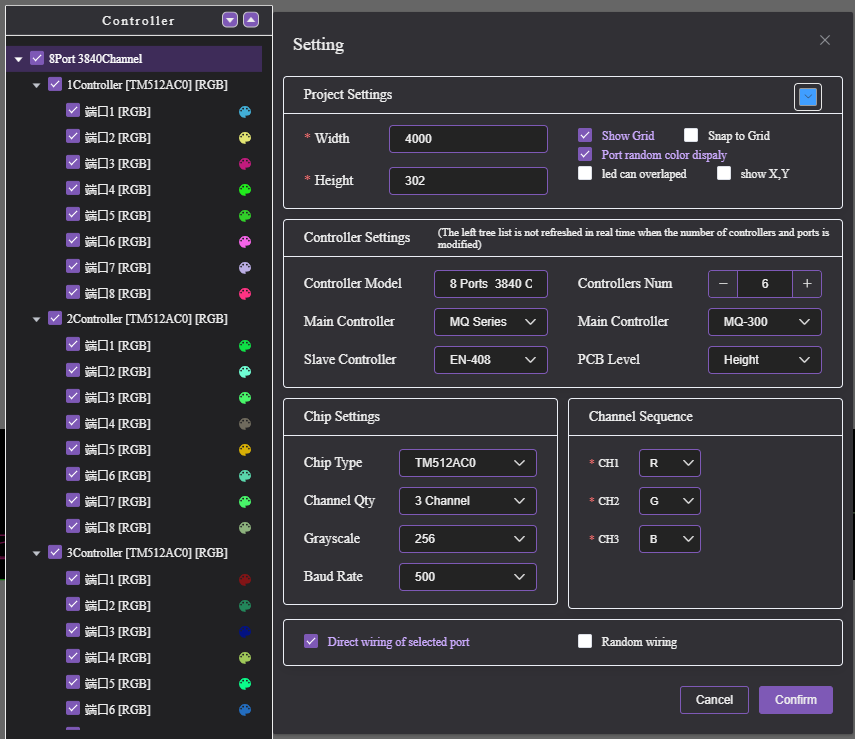
Before laying down a single pixel, Map Tools 4 lets you precisely configure the engineering foundation through its Settings panel. You can define the canvas width and height, enable the grid for alignment, and even allow overlapping pixels to accommodate special shapes. More importantly, you can set up the controller and chip parameters: choose the correct controller model (such as A308, A608), specify the driver IC type, the number of color channels, and the RGB color order. Should you need to replace a controller later, the tool intelligently guides you through merging or splitting port data. For instance, when switching from an 8-port controller to a 2-port one, you can flexibly choose strategies like “copy distribution” or “sequential overwrite,” dramatically reducing repetitive work and ensuring your lighting control system remains rock-solid.
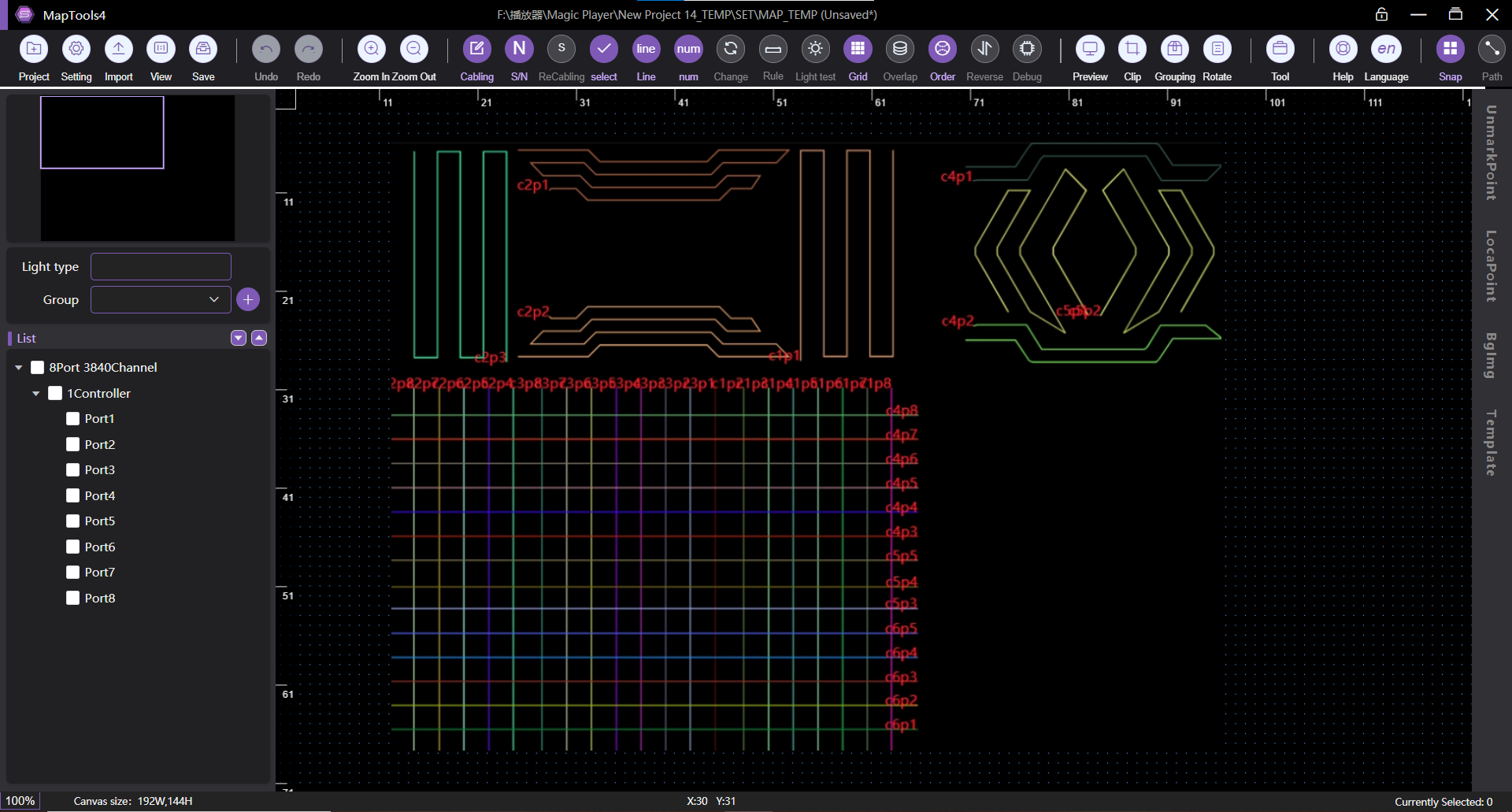
Map Tools 4 provides a variety of wiring methods to cover everything from regular matrices to free-form creative layouts.
You can place pixels one by one with a single click, moving freely in any direction. Enable “Random Wiring,” and you can continuously drag to lay down pixels just like using a paintbrush. By holding the Ctrl key in “Free Wiring” mode, you can effortlessly outline arcs, circles, and even custom text shapes. The circle drawing tool and virtual point functions make it possible to instantly create pixel layouts for circular fountains, spiral staircases, and other dynamic structures.
This is the most efficient option for regular panels. Simply input the width and height of the pixel array and choose one of the 16 common S-shaped or Z-shaped wiring directions, and Map Tools 4 will instantly generate a perfectly aligned pixel matrix. You can also batch-configure subsequent ports to use the same parameters, or even apply the settings to all controllers with a single click – true “one-second wiring.” X/Y spacing parameters and port arrangement settings guarantee that the physical cable routing matches the design exactly.
For CAD construction drawings supplied by design institutes or contractors, Map Tools 4 can directly import DXF files. It intelligently identifies circle centers or line endpoints as pixel positions and automatically matches distance bases to project dimensions. Whether you set the reference to the largest circle radius, the smallest point spacing, or a fixed canvas size, the conversion remains highly accurate. Ambiguous ports are highlighted to help you quickly correct any discrepancies. After importing, the re-routing function lets you adjust wiring paths, ensuring your design drawings connect seamlessly to the actual control system.
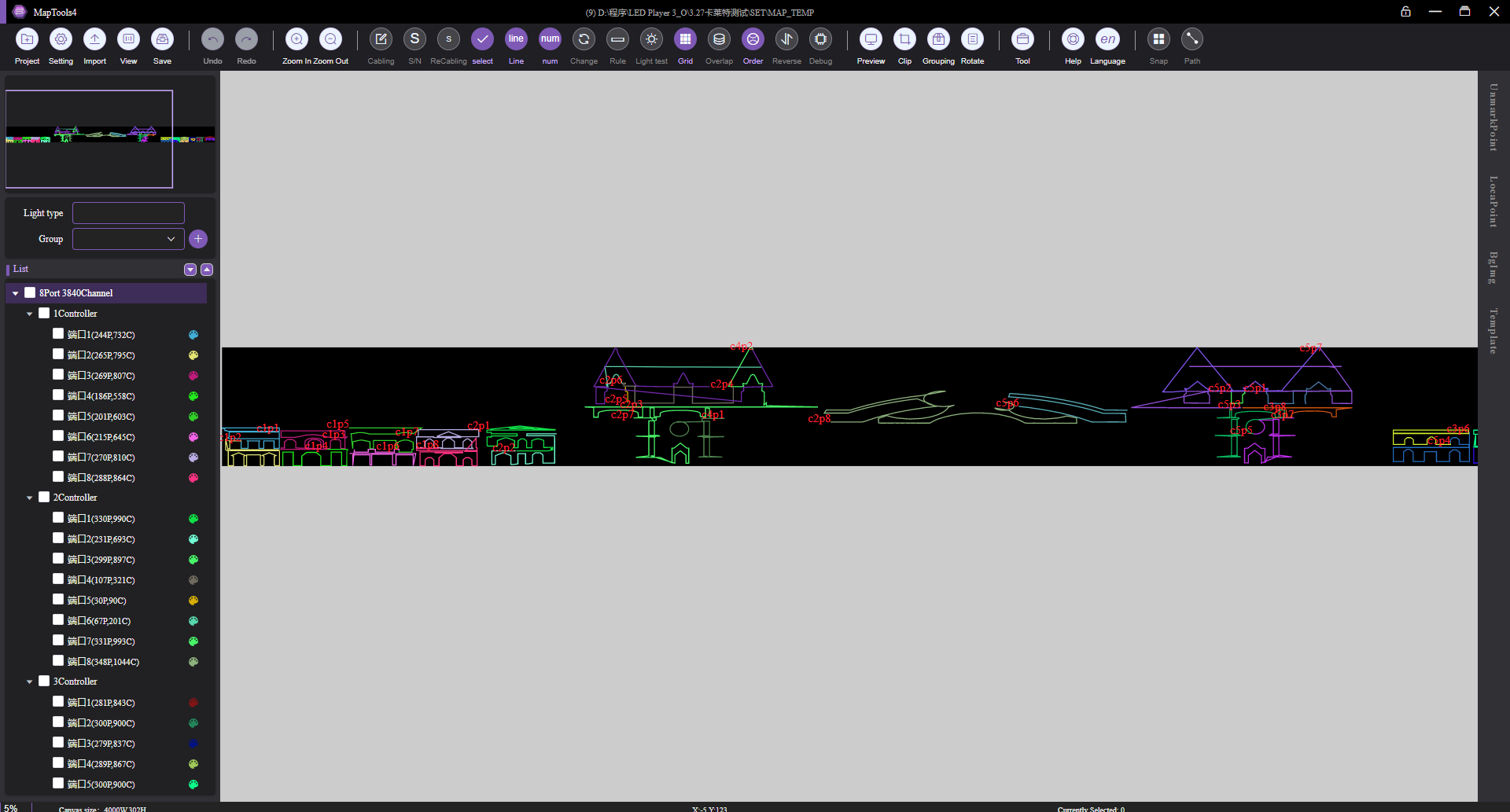
When handling complex projects, the controller and port management logic of Map Tools 4 truly shines. Right-click any port, and you can perform overwrite paste, append paste, or interleave paste, making it incredibly easy to merge or insert pixel data. If the on-site wiring direction is reversed, the “Reverse” function instantly flips the signal flow of an entire chain. The “Change” feature allows two disconnected groups of pixels to be combined under a single port, with addresses automatically re-sequenced, solving the problem of adding fixtures later in a project. For setups with multiple controllers, operations like copying, deleting, and swapping ports allow you to reorganize data with exceptional freedom. Every action is reflected in real time on the wiring canvas, and different colors are used to distinguish ports, completely eliminating the risk of crossed wires or signal errors. This level of control turns Map Tools 4 into a highly reliable LED wiring tool for even the most demanding projects.
Outstanding wiring designs deserve to be reused. Map Tools 4 allows you to save any selected pixels, an entire port, or even a whole controller as a project template. The next time you encounter a similar layout, simply double-click the template and paste it onto the target port, saving the time and effort of redrawing. When a project is large and needs to be controlled in zones, the powerful group wiring feature takes center stage: you can drag and select several regions directly on the wiring area, quickly create multiple groups, and name them accordingly. Group information can be exported as MPX files with a single click, and they link directly with Magic Player’s program editing interface. When you create a new program, you can instantly generate multiple screen windows based on these groups, making zoned effect editing a seamless, one-step process.
Once wiring is complete, the last thing you want is an untested design. The built-in lighting debug feature of Map Tools 4 allows engineers to connect hardware on-site and run online verification. Select the controllers or ports you want to test, set the test brightness and color (you can even assign different colors to different controllers), and with one click, the actual fixtures respond immediately. By performing point-by-point checks or a full-system walk through, you can quickly identify issues such as short circuits, broken links, and address jumps. The status bar also displays the number of selected pixels and their coordinates, delivering a true “what you see is what you get, what you adjust is what you control” experience.
To keep your creative flow uninterrupted, Map Tools 4 is packed with shortcut keys: D to start wiring, P to swap ports, S to open hardware settings, Ctrl+S for quick save, and arrow keys for fine-tuning layouts. Once you master these combinations, your hands hardly need to leave the keyboard. In addition, when deleting pixels, you can choose whether the numbering remains consecutive—accommodating the virtual data needs of special ICs. Random wire colors and per-port random coloring help differentiate signal chains. The overall preview window lets you instantly navigate across an extra-large canvas. All of these thoughtful touches demonstrate a deep understanding of a lighting engineer’s workflow, cementing Map Tools 4 as a truly professional LED wiring tool.
Magic Player Map Tools 4 is far more than a simple pixel-painting utility; it is the professional bridge connecting creative concepts to physical seas of light. From rapid prototype construction during the design phase, to precise DXF import for detailed shop drawings, and on to grouped management and real-time lighting debug during on-site commissioning, it delivers a unified, fluid, and highly customizable operating experience. This dramatically shortens wiring time and nips errors in the bud. Whether you are a lighting system integrator or an independent lighting designer, mastering Map Tools 4 will equip you to deliver zero-rework, high-quality LED lighting projects with total confidence.
Want to learn more about fixture wiring and Map Tools? Feel free to leave Seekway Innovations a message.


